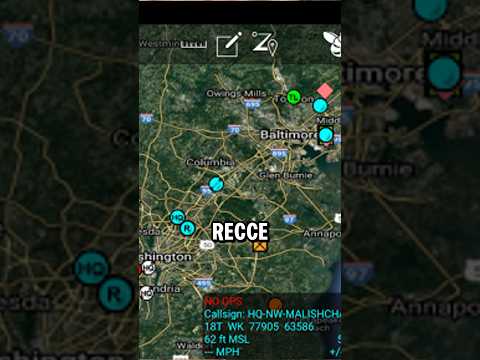
ULTIMATE SETUP GUIDE: Beartooth Radio + ATAK

Published on May 11, 2024
Duration: 19:19

This guide details the setup and operation of the Beartooth radio system integrated with the ATAK application. It covers initial app downloads, device pairing, network configuration including encryption, and advanced features like location sharing, custom talk groups, map loading, and data package creation. The instruction emphasizes building a secure, encrypted mesh network for situations where cellular service is unavailable.


Quick Summary

The Beartooth radio system integrates with the ATAK app for secure, encrypted mesh networking. Key setup steps include downloading the ATAK app and Beartooth plugin, connecting the radio via Bluetooth, setting call signs, and enabling encryption with a shared key. Advanced features like location sharing, custom talk groups, and map loading enhance tactical communication capabilities.

Chapters

  1. 00:00Introduction to Beartooth & ATAK
  2. 02:12Optimal Beartooth + ATAK System Setup
  3. 02:28Downloading ATAK and Beartooth Plugin
  4. 03:22Opening ATAK and Granting Permissions
  5. 04:06Tac Device Setup and Plugin Loading
  6. 04:25Powering On Beartooth and Connecting
  7. 04:52Beartooth vs. ATAK Settings Navigation
  8. 05:12Setting Your Call Sign in ATAK
  9. 05:40Verifying Network and Enabling Encryption
  10. 06:28Using Contacts and Sending Messages
  11. 07:16Location Sharing and Refresh Rate Settings
  12. 08:00Sending Group Broadcast Messages
  13. 08:39Sending Voice Messages (Tap to Speak & PTT)
  14. 09:31Sending Markers on the Map
  15. 10:43Creating and Sending Routes
  16. 11:21Sending Pictures Over the Network
  17. 12:46Building and Sending Data Packages
  18. 14:19Creating Custom Talk Groups
  19. 14:43Adding a Beartooth Group
  20. 15:43Understanding Breadcrumbs for Range Extension
  21. 16:39Hardware/Range Test Functionality
  22. 17:29Loading Detailed Maps in ATAK
  23. 18:54Conclusion and Support Information

Frequently Asked Questions

How do I download the necessary applications for the Beartooth and ATAK system?

You need to download two applications: the Android Tactical Awareness Kit (ATAK) and the Beartooth Mark II plugin. Both can be found on the Google Play Store. For iPhone users, the process is similar, downloading the ATAK app and the corresponding Beartooth plugin.

What are the basic steps to connect my Beartooth radio to the ATAK app?

After downloading and installing both applications and granting necessary permissions, turn on your Beartooth radio. Then, within ATAK, navigate to the connection settings and select your Beartooth device, identified by its serial number, to establish the connection.

How can I ensure my communications are secure when using Beartooth and ATAK?

To secure your communications, you can enable encryption within the ATAK settings. This involves accessing the GUI box below the network setting and entering a shared team encryption key. Ensure all team members use the identical key for the network to function securely.

What is a 'breadcrumb' in the context of Beartooth networking?

A 'breadcrumb' is a Beartooth device that is not connected to a smartphone. These devices can be strategically placed in elevated locations, such as on drones or water towers, to act as relays and significantly extend the operational range of the Beartooth mesh network.

How do I load custom maps into ATAK for use with my Beartooth system?

To load custom maps, access the 'maps' section in ATAK, select your desired map type (like Google Satellite), define the area you want to download using the lasso select tool, and then initiate the download. Saved maps can be accessed later for offline use.

Related News

All News →

More Tactical & Gear Videos You Might Like

More from American Outlaw

View all →