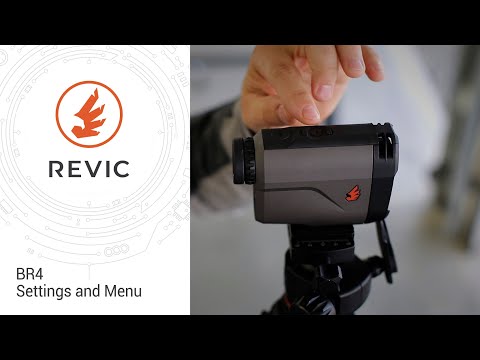
REVIC PMR428 Smart Rifle Scope | Menu Navigation

Published on October 29, 2019
Duration: 6:31

This video provides a comprehensive overview of the menu navigation for the Revit PMR428 Smart Rifle Scope. It details how to access and utilize the various menus, including weather, heads-up display settings, system setup, wireless (Bluetooth), battery management, profile selection, and compass functions. The instruction emphasizes the scope's sophisticated ballistic engine and the importance of understanding its settings for optimal performance.

Quick Summary

The Revit PMR428 Smart Rifle Scope's menu is accessed by a short press of the 'Enter' button from the main display. This opens categories like Weather, Heads-Up Display, Setup, Wireless, Battery, Profiles, and Compass, allowing users to adjust critical shooting parameters and device settings.

Chapters

  1. 00:05Introduction to Menu Navigation
  2. 00:09Revit PMR428 Overview
  3. 00:39Button Layout and Menu Access
  4. 01:00Powering Up and Main Display
  5. 01:07Entering the Navigation Menu
  6. 01:15Weather Module Navigation
  7. 01:24Adjusting Values (Base Wind Example)
  8. 01:46Navigating Between Menu Items
  9. 02:08Heads-Up Display Menu
  10. 02:18Setup Menu Options
  11. 02:43Wireless (Bluetooth) Menu
  12. 03:12Turning Bluetooth Off
  13. 03:26Battery Menu
  14. 03:44Profile Menu
  15. 03:56Deep Dive into Profiles (Muzzle Velocity, BC)
  16. 04:43Compass Menu
  17. 05:06Menu Timeout Behavior
  18. 05:25Exiting Navigation Menu
  19. 05:43Conclusion and Practice

Frequently Asked Questions

How do you access the menu on the Revit PMR428 Smart Rifle Scope?

To access the menu on the Revit PMR428, first power on the scope by pressing and holding the power button for 3 seconds. From the main display, a short press of the 'Enter' button will take you directly into the navigation menu.

What are the main menu categories available on the Revit PMR428?

The Revit PMR428 offers several main menu categories: Weather (temperature, pressure), Heads-Up Display (reticle/display brightness, color), Setup (zeroing, system units), Wireless (Bluetooth), Battery (sleep time, type), Profiles (ballistic data), and Compass (azimuth, latitude, calibration).

How do you adjust settings within the Revit PMR428 menus?

Within the Revit PMR428 menus, when a specific value or setting is outlined, pressing 'Enter' allows you to select it for adjustment. Use the up and down arrows to change the values, and press 'Enter' again to confirm.

Can you fine-tune ballistic data directly on the Revit PMR428 scope?

Yes, you can fine-tune ballistic data like muzzle velocity and Ballistic Coefficient (BC) directly on the Revit PMR428. By navigating into the 'Profiles' menu and selecting a specific variable, you can make small adjustments to tune the scope to your ammunition and barrel conditions.

More Tactical & Gear Videos You Might Like

More from Gunwerks

View all →