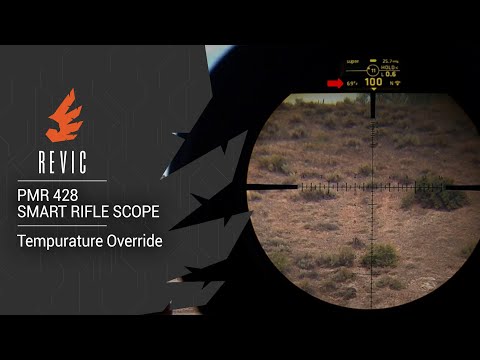
REVIC PMR428 Smart Rifle Scope | Adjusting Brightness

Published on October 29, 2019
Duration: 3:50

This guide details how to adjust the brightness and color settings on the REVIC PMR428 Smart Rifle Scope. It covers powering on the device, navigating the menu system using the arrow and enter buttons, and making specific adjustments to display brightness, reticle brightness, and reticle color. The guide also highlights the automatic save function and the quick adjustment feature available from the main display.

Quick Summary

To adjust brightness and color on the REVIC PMR428, power on the scope, enter the navigation menu, and select 'Heads-Up Display'. You can then adjust 'Display' brightness, 'Reticle' brightness, and 'Reticle Color' using the arrow and enter buttons. Settings save automatically, and quick brightness adjustments are available from the main display.

Chapters

  1. 00:05Introduction to Brightness Adjustment
  2. 00:12Powering On the PMR428
  3. 00:23Understanding Control Buttons
  4. 00:49Entering the Navigation Menu
  5. 01:03HUD Menu Options: Display, Reticle, Color
  6. 01:12Brightness vs. Color Settings
  7. 01:35Adjusting Display Brightness
  8. 02:15Adjusting Reticle Brightness
  9. 02:37Changing Reticle Color
  10. 02:46Exiting the Menu
  11. 03:00Quick Brightness Adjustment from Main Display
  12. 03:40Conclusion

Frequently Asked Questions

How do I turn on the REVIC PMR428 Smart Rifle Scope?

To power on the REVIC PMR428, press and hold the inner button for approximately 3 seconds until the main display illuminates.

How do I adjust the brightness of the reticle on the REVIC PMR428?

Navigate to the 'Reticle' option in the HUD menu, press enter to select the value, use the up/down arrows to adjust brightness, and press enter again to save.

Can I change the color of the display on the REVIC PMR428?

No, the display color on the REVIC PMR428 is fixed at yellow and cannot be changed. However, you can select from Red, Yellow, Blue, or Green for the reticle color.

How do I quickly change the brightness on the REVIC PMR428 without entering the full menu?

From the main display, simply press the up or down arrow buttons. This will proportionally adjust both the display and reticle brightness, maintaining your previously set bias.

More Tactical & Gear Videos You Might Like

More from Gunwerks

View all →